


Cleanup Master
4.634.00 Reviews
App Specs
- Version
- 14
- Updated On
- License
- Free
- Downloads
- 100,000+
- Developer
- Alpha Black Car Services Inc 2
- Categories
- Productivity
- Platform
- Android
Screenshots


 Analysis by AppCompare
Phone clutter rarely arrives as one dramatic problem. It builds up through duplicate-looking photos, old downloads, apps you no longer open, and uncertainty about what is draining the battery. I like the idea behind Cleanup Master because it brings those small maintenance jobs together instead of making me hunt through several settings screens. Its usefulness, though, depends on treating it as a guide to what might be cleaned—not as permission to erase everything it flags.
This is a free productivity app from Alpha Black Car Services Inc 2, with a 4.5 average from around 1.6 thousand ratings and over 100 thousand installs. It is rated for everyone, and version 14 runs on Android 8.0 or later. Those details make it look accessible to a broad range of Android users, but the real question is whether its cleanup tools save more time than they add in review and confirmation. In my view, it is most appealing when you want a single place to check storage, photos, apps, and battery information without turning phone upkeep into a project.
Small storage problems, handled before they pile up
I like to start with the small, recurring hassles that make phone upkeep feel bigger than it is: a crowded gallery, an app list that has drifted out of date, or a battery question that sends me searching through settings. In this section, I’ll look at how a focused check can make those chores easier to approach, while keeping the next step deliberate rather than automatic.
Why a dedicated cleanup app can help
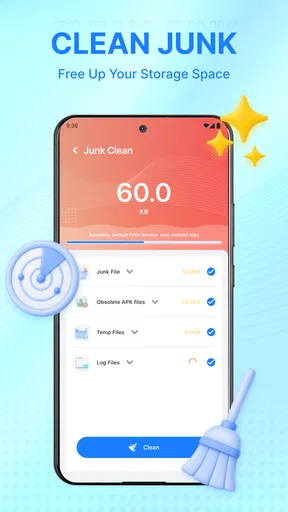
Android already includes storage controls, photo management, and app settings. The trouble is that those tools are spread across different parts of the phone, and the path to the right screen can vary by manufacturer. That makes a simple task—finding what is safe to remove—feel more involved than it should. Cleanup Master’s main appeal is convenience: it puts several common maintenance concerns under one roof.
The name can suggest a one-tap fix, but I would approach it more carefully. A cleaner cannot know whether an old image is sentimental or whether an app you rarely open is essential for a once-a-month task. The useful part is having a place to inspect possible cleanup targets and make a deliberate choice. For me, a good cleanup routine is one that reduces uncertainty without taking control away from the person using the phone.
The app is a better fit for people who notice storage getting tight and want a straightforward starting point than for anyone expecting a dramatic speed boost. Clearing unwanted files may make room, but it is not a substitute for a phone that is running out of memory, has a failing battery, or is slowed by an unrelated issue. I would judge it by whether it helps me identify clutter and act on it with less hassle.
A sensible first session
On first use, I would begin with the storage task that matters most rather than trying to clear every category at once. Review the suggested files, then move to photos and installed apps separately. That order makes it easier to tell what each action changes, and it lowers the chance of tapping through a broad cleanup flow without noticing something worth keeping.
Worth Reading Before You Choose

EA SPORTS FC Mobile 26 Is a Bigger Football Game, but It Takes Time

Flipboard Shows What News Apps Must Do Beyond the Feed

Switching to Android Auto Means Rethinking Your Driving Routine

Google Calendar Makes a Crowded Week Easier to Manage

Ludo King Makes the Most of the Minutes Between Plans

Baby Panda World Brings Quick Play to Modern Phones, but Its Game Library Feels Busy
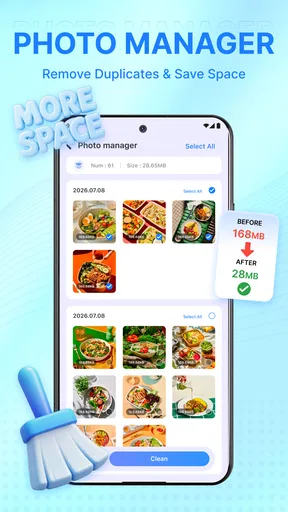
Photos need the most patience. A set of similar shots can look disposable at a glance, but one may be the only clear picture from an event. Before removing anything, I would open the candidates and compare them, especially if they show family, receipts, travel, or work. If a group is valuable, keep it or make sure it is backed up through a method you already trust before deleting copies.
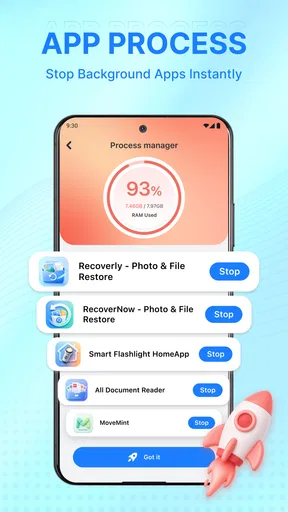
App management benefits from a different rule: judge an app by its role, not only by how often it appears in your recent activity. Travel tools, authenticator apps, and utilities used for a specific annual task may sit idle for long stretches and still be important. I would check the app name and purpose before removing it, then use the phone’s own settings if I need more detail about storage or background behavior.
The battery information is most useful as a prompt to investigate patterns, not as a diagnosis. If the phone seems to lose charge quickly, checking battery information can help me decide whether to look more closely at usage or settings. It cannot by itself explain every cause of battery drain, so I would avoid treating one reading as proof that a particular app or component is responsible.
Everyday situations where it earns its place
Imagine you are about to record a school performance or take photos on a day trip and the phone warns that storage is nearly full. Instead of deleting the first large item you find, you can use the app as a quick checkpoint: look for files you recognize as unnecessary, inspect photo candidates, and consider whether an unused app can go. The practical benefit is not magic extra space; it is a more organized decision when time is limited.
A different use case is a monthly phone tidy-up. I would look at photos and apps when I have a few quiet minutes, rather than waiting for a low-storage warning to interrupt something important. Doing one category at a time also makes the process easier to repeat: I can tell whether I am actually clearing clutter or just revisiting the same suggestions. This routine is especially handy for someone who does not enjoy navigating separate Android menus.
There is also a useful distinction between cleanup and maintenance. Removing unneeded files addresses storage. Reviewing apps helps keep the installed list manageable. Checking battery information can point you toward a closer look at power use. Those are related chores, but they are not interchangeable fixes. Keeping that distinction clear prevents disappointment if, for example, freeing space does not make an older phone feel faster.
A few habits that make cleanup safer
One practical way to reduce mistakes is to treat each cleanup session as a short audit rather than a button-pressing exercise. I would first decide what I am trying to solve—freeing room for a trip, sorting images, or reviewing installed apps—and stay with that category. A clear goal helps me avoid deleting unrelated items simply because they appear during the same session.
For photos, I would be especially cautious with screenshots and images that look repetitive. Screenshots can hold booking details, payment references, or instructions I meant to use later, while similar photos may differ in focus or expression. A useful habit is to check the surrounding images and context before removing a candidate. If I cannot tell what a file is for, leaving it alone is usually less costly than having to recreate or recover it.
App cleanup has its own edge case: an app can be rarely used but still hold information I need. Before removing something tied to travel, work, accounts, or health, I would check whether I can sign back in and whether its data is stored elsewhere. This is not a reason to avoid removing apps; it is a reminder that “unused lately” and “unneeded” are not the same thing.
Where the convenience comes from—and where it stops
The friction Cleanup Master aims to remove is the back-and-forth between phone tools. Rather than remembering where each control lives, you can start in one app and work through several kinds of upkeep. That is a modest but real advantage for casual users, particularly anyone who only cleans up when storage becomes inconvenient.
Still, a centralized screen does not automatically make every suggestion correct for your habits. The time saved depends on how much you inspect. A careful user may spend longer reviewing photos than they would in the gallery, while someone who already knows Android’s storage menus may find little benefit in an extra layer. I would not use a cleanup tool as a reason to delete files I cannot identify.
Compared with Android’s built-in storage controls, Cleanup Master’s draw is having photo and app management alongside battery information in the same utility. Built-in settings may be the better choice when you want system-level details or prefer to avoid installing another app. A dedicated photo manager may suit someone whose main challenge is sorting a large gallery, while a file manager can be more appropriate when you want to inspect folders yourself. Cleanup Master makes more sense when the goal is a simple, general check rather than deep control over one area.
It is also worth keeping expectations realistic about reliability. A cleanup result is only useful if you understand what is being removed and can reverse a mistake—or have a backup when reversal is not possible. I would review each group, avoid rushing through photo decisions, and keep the phone’s normal settings available when I need a second opinion. That approach takes a little longer than blindly accepting suggestions, but it is the trade-off I would choose for personal files.
Questions worth answering before you rely on it
Will it make an older phone faster? I would not install it for that promise. The app can help with housekeeping, but freeing storage and improving overall responsiveness are different outcomes. If a phone feels slow, I would first check the built-in battery, storage, and app settings for the specific symptom rather than assuming a cleanup pass will solve it.
Can I use it without deleting personal photos or apps? Yes, in the practical sense that you can use a cleanup utility as an inspection point and choose what to keep. The important habit is to review candidates rather than treating every suggestion as disposable. If your priority is simply understanding where space is going, the phone’s own storage screen may be enough; if you want a broader checklist, this app can serve as a convenient starting place.
How often should I run through the categories? I would avoid making cleanup a daily ritual. A periodic check, or a focused session when storage becomes tight, is more sensible than repeatedly scanning for changes that may not matter. The right rhythm depends on how many photos, downloads, and apps you accumulate, so I would let a real need prompt the review instead of chasing a perfectly empty phone.
What should I do when a suggested item is unclear? Leave it in place and investigate through the relevant Android tool. That may mean opening a photo in the gallery, checking an app’s purpose, or looking at file details in a file manager. The extra step is worthwhile when deletion could affect a memory, account, or task you depend on. Convenience should shorten routine work, not pressure you into uncertain decisions.
Who should use it, and who may prefer another route
I would recommend giving Cleanup Master a try if you want a free, approachable hub for routine Android housekeeping and are comfortable making the final decisions yourself. It is particularly suited to people who do not want to learn several separate menus just to check storage, photos, apps, and battery information. The broad age rating also means its intended audience is not limited to a specialist or technical crowd.
I would skip it if your phone is already tidy, you are happy with the built-in tools, or you want a detailed file-by-file workflow. It is also not the right answer if your main concern is diagnosing a battery fault or recovering space from a particular folder; those jobs call for more targeted tools and a closer look at system settings. Anyone who is uncomfortable deciding whether a photo or app is expendable should slow down rather than letting a cleanup routine make the choice for them.
Overall, I see Cleanup Master as a convenience tool, not an essential Android component. Its strongest case is the time and attention it can save by gathering ordinary maintenance tasks in one place. Its weakest point is the same one shared by cleanup utilities generally: the user still has to distinguish clutter from something useful. If you use it as an inspection aid, proceed category by category, and keep important photos safe, it can make routine upkeep less annoying. If you want deeper control or already know your way around Android’s own tools, the built-in route may be simpler.
Pros
- Combines junk-file cleanup with app management in one place.
- Can help identify large files that are easy to overlook.
- Useful for freeing storage on devices with limited space.
- Offers a straightforward interface for routine maintenance.
- May help users find apps they no longer need.
Cons
- Cleanup results can vary depending on the device and Android version.
- Some cleanup suggestions may require checking before deleting files.
- Extra features may include ads or prompts to upgrade.
- Battery and performance claims may be difficult to verify.
- Deleting app data can remove saved settings or offline content.
FAQs for Cleanup Master
What is Cleanup Master, and what does it do?
Cleanup Master is a phone-maintenance app intended to help users review and remove unwanted files, such as cached data, temporary items, and leftover files from apps. Depending on the version and device, it may also offer tools for managing storage or monitoring device performance. Its available features can vary, so check the app listing and on-screen descriptions before relying on a specific tool.
Is Cleanup Master safe to use, and will it delete important files?
A cleanup scan may identify files that appear unnecessary, but not every suggested deletion is harmless in every situation. Review the categories and items before confirming a cleanup, particularly if you are unsure whether a file belongs to an app you use. Download the app from an official store, check its developer and permissions, and keep a backup of important photos, documents, and other personal data.
Is Cleanup Master free, or does it include paid features and ads?
The price model can differ by platform, region, and app version. Cleanup Master may be offered free with advertisements, while some versions can include optional subscriptions, in-app purchases, or paid features. Review the current store listing for pricing and trial terms, and check the confirmation screen before starting a subscription. Uninstalling an app generally does not cancel a subscription, so manage billing through the store account used to subscribe.
Does Cleanup Master work on both Android and iOS?
Availability and functionality depend on the exact Cleanup Master app and the device you use. Android and iOS impose different restrictions on how apps can access storage, clear caches, and manage other applications, so features may not match across platforms. Confirm that the listing is available for your operating system and that your device meets its requirements. Also verify the developer name, since similarly named apps may be unrelated.
Do I need to run Cleanup Master regularly to keep my phone fast?
Not necessarily. Modern phones manage many temporary files and background tasks automatically, and repeatedly clearing data may provide little benefit or cause apps to reload information. Use Cleanup Master when you need to inspect storage or remove files you have reviewed, rather than assuming frequent scans will improve performance. If your phone remains slow, check available storage, update the operating system, and identify resource-heavy apps before relying on a cleaner.


